
Installation
This guide walks you through installing Runtime Video Recorder (RVR) in your Unreal Engine project.
Which license do I have?
- Standard (one-time purchase) - install and go. No API key.
- Perpetual (one-time purchase, full source) - install and go. No API key.
- Subscription - install, then set your API key. Internet connection required.
See the licensing page for the full comparison.
Supported Versions & Platforms
- Unreal Engine: 5.4 - 5.8
- Platforms: Windows, MacOS, iOS, tvOS, Linux, Android, Oculus / Meta Quest
Step 1 - Install the Plugin
Choose the method that matches your project type.
Blueprint-Only Project (no C++ code)
Place the plugin in the Engine directory:
<ENGINE_DIR>/Plugins/Marketplace/RuntimeVideoRecorder/For example, a typical path on Windows:
C:/Program Files/Epic Games/UE_5.5/Engine/Plugins/Marketplace/RuntimeVideoRecorder/C++ Project
Place the plugin in your Project directory instead:
<PROJECT_DIR>/Plugins/RuntimeVideoRecorder/Important for C++ projects
If you previously had the plugin in the Engine directory, remove <ENGINE_DIR>/Plugins/Marketplace/RuntimeVideoRecorder before placing it in your project's Plugins/ folder. Having copies in both locations causes conflicts.
Step 2 - Quick Test
The plugin ships with a demo level for quick verification:
- Open the Content Browser
- Enable Show Plugin Content (click the settings icon in Content Browser)
- Navigate to Plugins → Runtime Video Recorder Content
- Open
Level_RuntimeVideoRecorder_UE53Plus - Press Play - you should see the recording controls
Standard / Perpetual users
That's it - you're done. Skip ahead to Platform-Specific Notes or jump straight to the Quick Start Guide.
Subscription only - API Key Setup
Standard and Perpetual licenses do not use an API key. This section is only for Subscription users.
Get Your API Key
After completing checkout for a Subscription, an API key is emailed to you automatically. If you haven't received it, check spam or contact [email protected].
Don't have a Subscription yet? Get one at unrealsolutions.com.
Enter Your API Key
- Open your project in the Unreal Editor
- Go to Edit → Project Settings
- Scroll down to Plugins → Runtime Video Recorder
- Paste your API key into the API KEY field
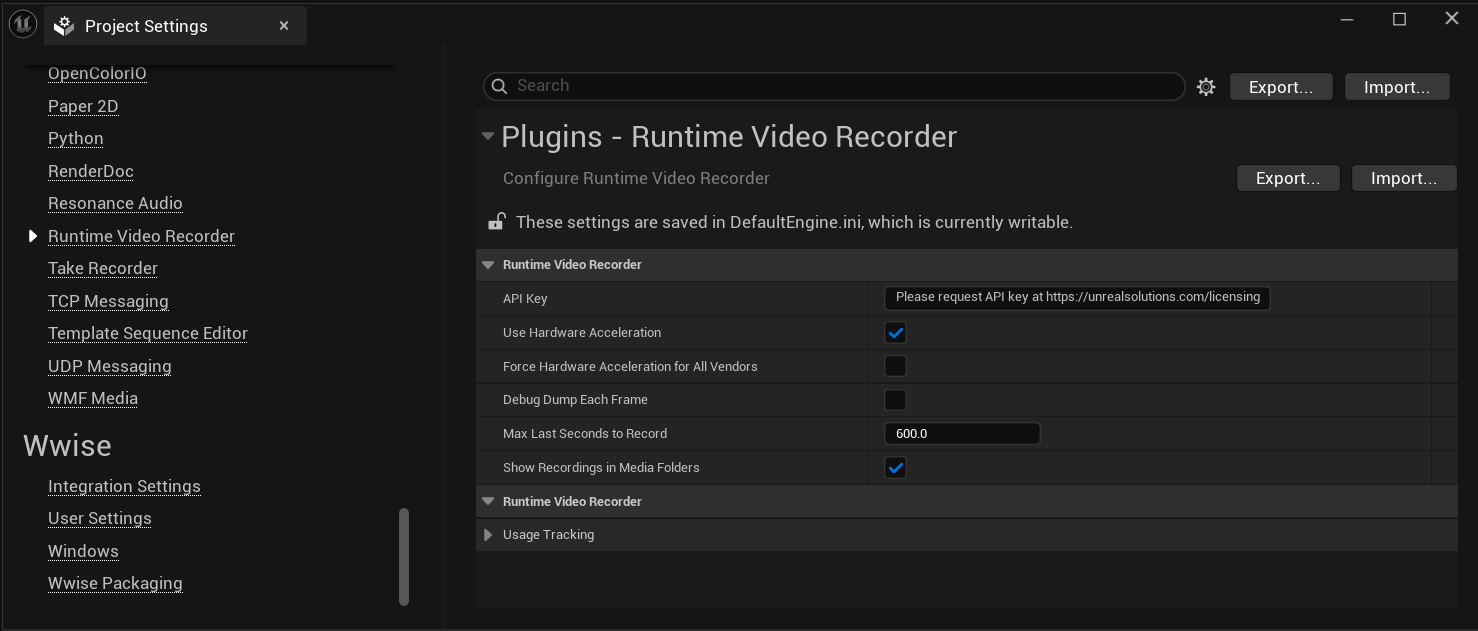
API KEY field doesn't appear? Delete the Engine copy of the plugin at
<ENGINE_DIR>/Plugins/Marketplace/RuntimeVideoRecorderand restart the editor. The settings panel should now display the API key field correctly. Custom Engines require Perpetual license!
Testing in Packaged Builds
To verify the Subscription works in Development or Shipping configuration (outside the Editor), use the provided sample project:
Remember to replace the API key in the sample project with your own.
Platform-Specific Notes
Windows
No additional setup required. Hardware acceleration is enabled by default.
AMD / Intel GPUs
If you experience encoding issues, enable Force Hardware Acceleration For All Vendors in Project Settings → Plugins → Runtime Video Recorder.
MacOS / iOS / tvOS
No additional setup required. AVFoundation handles encoding natively.
Linux
OpenH264 library is bundled. No additional setup required.
WARNING
Linux uses software encoding (no hardware acceleration). Expect higher CPU usage compared to other platforms.
Android / Oculus
- Minimum SDK Version: 21 or higher
- Target SDK Version: 30 or higher
- Package for arm64 must be enabled
Add storage permissions to Config/DefaultEngine.ini:
[/Script/AndroidRuntimeSettings.AndroidRuntimeSettings]
bEnablePermission_WRITE_EXTERNAL_STORAGE=True
bEnablePermission_READ_EXTERNAL_STORAGE=True
For Oculus / Meta Quest, also enable the Oculus VR plugin and set the target device under Project Settings → Platforms → Android.
Verify Installation
After setup, confirm the plugin is working:
- Open any Blueprint
- Right-click in the Event Graph
- Search for "Start Recording"
- You should see the Start Recording node from Runtime Video Recorder
For C++ projects, add the module to your .Build.cs:
PublicDependencyModuleNames.AddRange(new string[] {
    "Core",
    "CoreUObject",
    "Engine",
    "RuntimeVideoRecorder"
});
Troubleshooting Installation
| Problem | Solution |
|---|---|
| Plugin doesn't appear in Plugins list | Verify the folder is in the correct location and contains the .uplugin file. Regenerate project files. |
| API KEY field is missing (Subscription only) | Delete <ENGINE_DIR>/Plugins/Marketplace/RuntimeVideoRecorder and restart the editor. Custom Engines require Perpetual license! |
| Recording fails on Subscription with auth error | Verify your API key is set (see above), the Subscription is active, and the machine has internet connectivity. |
| Compilation errors | Ensure UE 5.4-5.8. Delete Intermediate and Binaries folders, then regenerate project files. |
| Module not found error | Add "RuntimeVideoRecorder" to your .Build.cs (see above). |
| Android build fails | Verify Unreal Engine Android environment |
Next Steps
- Quick Start Guide - Record your first video in under 5 minutes
- Project Settings - Configure encoding quality, hardware acceleration, and more
- FAQ - Common questions about licensing, platforms, and usage
Need Help?
- Join our Discord community for quick support
- Email [email protected]